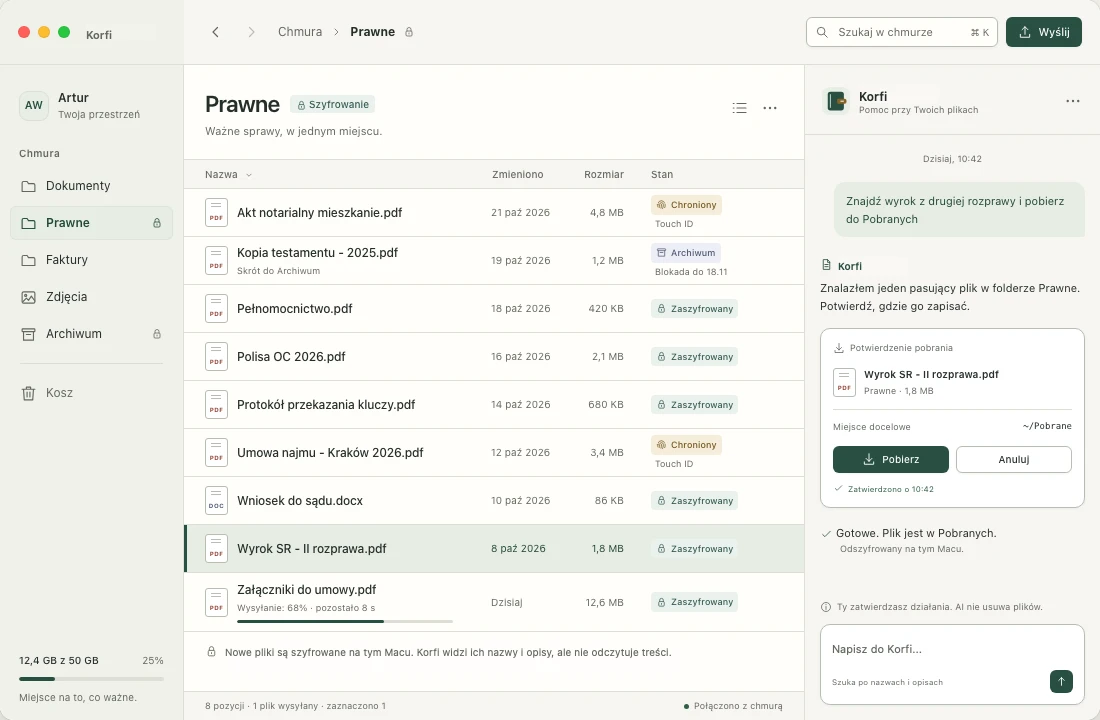
Laptop drives are often small, and extra storage is expensive. Put the documents, photos and videos from your phone or camera, old projects, archives and installers you don’t need right now into Korfi. They wait neatly organised, and when you want to work on them, you download them back in one click. The Assistant helps with the tidying: it shows a plan and changes nothing without your approval.
A native macOS app, notarized by Apple. Invite-only for now. Windows comes later.
Take a look insideApp mockup in Polish · example files
Files in the EUStored in data centers in the European Union
End-to-end encryptionIn Private and Vault folders
No ads, no trackingNo analytics or cookies here
A copy, not a mirrorNo two-way sync
01 / How it works
Put away, organise, bring back.
This is how Korfi works day to day. No sync, and no keeping track of what changed on your disk.
Step 1
Put away and free up space
Put away documents, photos and videos you do not need right now. Drag them or whole folders into Korfi, or ask the Assistant to tidy a folder you choose. A separate copy is created in the cloud, so you can delete the original from your Mac and get the space back.
Step 2
Keep things in order
Folders, descriptions and search by name, description and PDF text. Earlier versions of a file stay in its history, and important things can also be protected against deletion.
Step 3
Bring back when you need it
Download a file in one click to Downloads and keep working. The copy stays in Korfi.
02 / Room on your disk
A copy, not a mirror.
In a folder synced both ways, files take up space on your computer and in the cloud by default, so your disk does not get emptier. Deleting or overwriting on your computer usually spreads to the cloud too. One wrong click can take your only copy.
A file you upload to Korfi is a separate copy. Once the upload finishes, you can delete the original from your Mac to free up space. Nothing changes in Korfi. When you need the file, you download it back.
I deleted a folder on my computer and the sync deleted it in the cloud too. I lost many important files. That is why I am building Korfi.
- Artur, founder of Korfi
On your Mac
Free space
PDFAgreement.pdf
SendDownload
In your Korfi
PDFAgreement.pdf
Delete the original from your Mac. The copy waits in Korfi.
03 / The Assistant
One conversation, one clear plan.
Tell Korfi what to do with your files. The Assistant shows a plan with file groups to review, tidies up once you approve it, and lets you undo everything.
A plan with file groups. Expand the groups, untick what to leave alone, and choose: “Tidy up and free space” or “Only copy to Korfi”.
Approval before every change. Nothing moves without your approval. Folder access is requested right in the conversation, and the work continues by itself once you allow it.
Undo the whole tidy-up. The summary shows how much space you will get back and lets you undo the whole tidy-up.
Separate conversations and Stop. Every conversation runs on its own, and Stop halts the work at once.
AI never deletes anything permanently. Moving a file to Recently Deleted in Korfi always needs your approval, and you can restore it from there.
In encrypted folders, AI sees only file names by default. Vault contents are never processed.
Example conversation with the Assistant
Tidy up my Downloads folder
Korfi
I have a plan. Expand the groups and untick any files you want to leave alone.
Plan for your approvalTidy-up of the “Downloads” folder
Documents
Photos and videos
Installers and archives
Tidy up and free spaceOnly copy to Korfi
Nothing changes until you click. You can undo the whole tidy-up.
04 / Keep what matters
More than hitting save.
Safeguards for every day and for a bad one. The most important are enforced by the server, not just the app.
Protection against deletion
Mark a file or folder as protected. Deleting it, moving it out of its folder or removing protection requires fresh confirmation with a passkey, a TOTP code or an email code.
The server enforces this, so protection holds even if someone takes over your session.
Protected
Archive
Encrypted
A 30-day Archive
A stronger lock in file storage: for 30 days after upload, nobody can delete the file, including an administrator.
Recently Deleted with recovery
A deleted file waits in Recently Deleted for 30 days. Until then, you can restore it with one click.
Sign in without passwords
An email code, and if you like, a second step with a TOTP app or a passkey.
Uploads that don’t start over
Large files go up in parts. If the connection drops, the upload picks up where it stopped.
05 / Privacy levels
You decide what the server sees.
Every folder has one of three levels. A subfolder can have the same level as its parent or a stricter one.
Standard
The default. The most convenient.
End-to-end encryption
No
The server sees
Contents, names and metadata
Content search
Yes
AI sees
Names and contents
Good for
Invoices, manuals, everyday documents
Private
Encrypted. The server cannot see contents.
End-to-end encryption
Yes, before upload
The server sees
Only names and metadata
Content search
No, by name only
AI sees
File names only
Good for
Contracts, bills, business documents
Vault
Encrypted. No processing at all.
End-to-end encryption
Yes, before upload
The server sees
Only names and metadata
Content search
No, by name only
AI sees
File names only
Good for
IDs, medical records, recovery codes
Encryption applies to files uploaded after you choose the level; earlier files are not re-encrypted. You keep the recovery key: without it and without your Mac, nobody can recover your encrypted files, including us. What exactly can Korfi see?
06 / Sharing and access
Less chasing after files.
Send a link instead of an attachment, receive files from others and keep control over who can reach your account.
Links with a QR code
Share a file with a link and a QR code. When the link is no longer needed, you can revoke it.
Drop links for files from others
Someone without an account, like your accountant, can send you files through a link into the folder you choose. They see nothing else in your Korfi.
Inbox
Files sent by email go straight into Korfi.
File version history
A new version does not overwrite the old one. Download an earlier version or restore it as a new one.
Signed-in devices
The list shows where you are signed in and lets you sign a device out remotely.
Korfi for other AIs
Connect Claude or ChatGPT to your Korfi. They cannot delete anything permanently.
07 / Your data, clear rules
A nearby cloud. A clear approach.
Files are stored in data centers in the European Union. Korfi has no ads or tracking. This site uses no analytics or cookies.
The assistant uses an external AI provider. Korfi’s AI proxy does not store conversation contents. EU file storage does not mean the AI provider processes data exclusively in the EU.
You write what to do with your files, and the Assistant shows one clear plan with file groups. Expand the groups, untick what to leave alone, and choose “Tidy up and free space” or “Only copy to Korfi”. Nothing changes without your approval, and afterwards you see how much space you got back.
How is Korfi different from a synced cloud drive?
A synced folder keeps files on your computer and in the cloud by default, so it does not free disk space. Deleting or overwriting on your computer usually spreads to the cloud and can take your only copy. Korfi keeps a separate copy: once the upload finishes, you can delete the original from your Mac to free space. The copy stays in Korfi, and you download it back when you need it.
Can I store photos and videos in Korfi?
Yes. Korfi stores any file type, including photos and videos from your phone or camera, old projects, archives and installers. Large file uploads can resume after a broken connection. This version has no previews or photo gallery, and no automatic phone sync. Download a file to your computer when you need it.
Will Korfi delete files from my Mac by itself?
Not without your approval. You send a copy, and you decide whether to delete the original to free up space. If you choose “Tidy up and free space” in an Assistant plan, the originals move to the Trash on your Mac only after you approve and the copy is checked, so you can restore them from there.
Can Korfi read my files?
It depends on the folder's level. In Standard folders, the server can see contents, for example for search. In Private and Vault folders, contents are encrypted on your Mac before upload and the server cannot read them. File names and metadata are visible at every level.
What if I lose my recovery key?
On the Mac where you turned on encryption, your files will still open. Without the key and without that Mac, encrypted files cannot be recovered, including by us. That is why the app asks you to save the key before you encrypt anything.
Can the Assistant delete anything?
Not permanently. Every change, including moving a file to the Trash, needs your approval. The plan shows everything before it starts, and you can restore files from the Trash on your Mac or from the Korfi Trash. You can also undo the whole tidy-up. The same goes for Claude and ChatGPT connected to Korfi: they cannot delete anything permanently.
How do I share a file or collect files from others?
Share a file with a link and a QR code, and revoke the link when it is no longer needed. With a drop link, someone without an account can send files into a folder you choose, and the Inbox takes files sent by email.
How do I install Korfi on my Mac?
Download Korfi and open the installer, which shows how to move Korfi to Applications. The app is notarized by Apple.
Where are my files stored?
In data centers in the European Union. The AI assistant uses an external provider, so EU file storage does not mean that every process happens exclusively in the EU.
How much storage do I get?
During beta, every account has 50 GB by default. If you need more, mention it in the access request form.
For now, Korfi runs on macOS. A Windows version is planned. A mobile app is not part of the beta.
How do I get an invitation?
Fill in the beta access request form. If you qualify, we will send an invitation to the email address you provided. You can create your account using the code you receive.
Korfi is in invite-only beta. Fill in the short form. If you qualify for the beta, we will email you an invitation. Then put away the first files you don’t need right now.